How to Format and Submit Your Exam Report
Passing a Practical DevSecOps certification isn't just about acing the hands-on challenges — you also need to deliver a well-structured exam report. This guide walks you through every step, from choosing the right style to uploading the final document, so you can focus on showcasing your skills rather than worrying about formatting or deadlines.
Table of Contents
Report Formatting
The Practical DevSecOps platform provides a ready-to-use Exam Report Template to help you prepare your submission correctly.
Exam Report Template:
https://docs.google.com/document/d/1F6eOrmBj7POkeJbTJt6ZkzzMpFzz4InDLSrNgmist1c/edit?usp=sharing
challenges Folder Requirement
Depending on the certification exam, you may or may not need to include a challenges folder inside your ZIP submission.
Exams That Require a challenges Folder
The following certification exams require a challenges folder as part of the report submission:
-
DevSecOps Professional Exam
-
DevSecOps Expert Exam
-
Container Security Expert Exam
-
Cloud Native Security Expert Course Exam
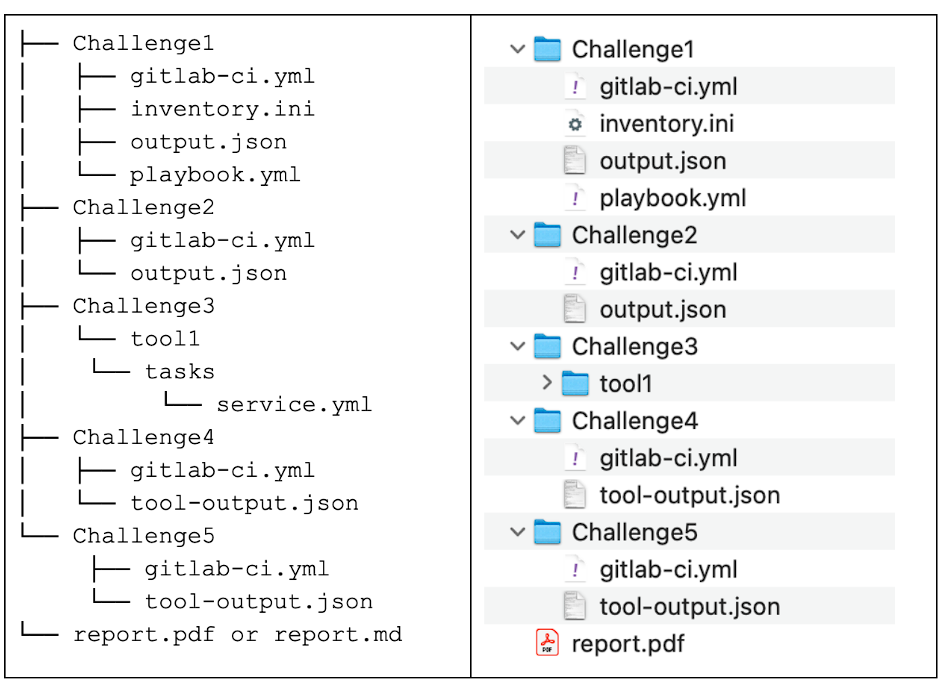
For these exams, ensure your ZIP file includes:
-
The report file
-
The
challengesfolder
This is an example of the ZIP structure with a challenges folder. Please ensure the Exam Folder naming is precise and follows the required format.
Exams That Do Not Require a challenges Folder
The following certification exams do not require a challenges folder:
-
Threat Modeling Exam
-
Software Supply Chain Security Expert Exam
-
AI Security Professional Exam
-
API Security Professional Exam
-
Security Champion Exam
Note: For these certification exams, only the report file in PDF or Markdown format is required inside the ZIP file. A challenges folder is not required.
Including Questions and Solutions
Your exam report must reflect both the exam prompts and your corresponding solutions. This dual-listing helps reviewers verify that you addressed every requirement.
Structure for Each Section
-
Question Header — Use a level-3 heading (
###) with the exact wording from the exam. -
Solution Body — Directly beneath the question, describe your approach, tools used, and outcomes. Include screenshots or code snippets where relevant.
-
Optional Commentary — Briefly note any challenges you faced and how you overcame them; this demonstrates critical thinking.
Example
### Question 1 – Deploy a Secure Container Image

**Solution:**
1. Built the Docker image using a hardened base (Alpine 3.18).
2. Scanned the image with Trivy (no vulnerabilities > Low).
3. Pushed the image to the private registry and deployed via Kubernetes manifest...
Reference: For a deeper dive, see the Exam and Certification module in your course dashboard.
How to Share the Final Report
When the exam timer ends, you'll receive a Submission CloudDrive link in the exam instructions. This is the only approved location for uploading your report.
Step-by-Step Upload Guide
-
Locate the CloudDrive URL on the final exam screen (usually displayed under "Submit Your Report").
-
Log in with the same credentials you used for the exam.
-
Drag-and-drop your PDF into the designated folder, or click Upload and select the file.
-
Confirm the upload by checking the file name and size.
-
Click the Submit confirmation button to lock in your submission.
Note: The system records a timestamp the moment you click Submit. Keep a screenshot of this confirmation for your records.
Understanding the 72-Hour Review Window
After you submit, the Practical DevSecOps team has exactly 72 hours to review your report. This window is continuous — weekends, holidays, and midnight all count.
Example: If you submit at 10:00 AM on Saturday, the review deadline is 10:00 AM on Tuesday.
There is no exclusion for Sundays or public holidays — the clock never stops. If you need clarification during this period, you can request a real agent, but be aware that the 72-hour clock does not pause for correspondence.
Common Questions & Quick Tips
Question Answer Do I need to use a specific font? No — just keep the default styles in the provided template. Should I list only the solutions? No — list both the exam questions and your solutions. Where do I upload the report? Use the Submission CloudDrive link supplied in the exam instructions. Does the 72-hour deadline skip weekends? No — 72 hours are counted continuously, regardless of the day. Can I upload the report more than once? You can upload up to twice before the deadline. Only the latest version will be evaluated. For the exam report, how many pages minimum must it be? There is no required minimum page count for the exam report. Just include every exam question, your solution, screenshots or code snippets as needed, and keep the file under the 50 MB size limit.
Additional Tips for a Smooth Submission
-
Double-check the timestamp after hitting "Submit." A screenshot can serve as proof if any dispute arises.
-
Validate PDF readability on a different device before uploading — fonts can sometimes embed incorrectly.
-
Keep a local backup of the original report file until you receive your final certification email.
-
Review the "Exam and Certification Process" lecture for any course-specific nuances (e.g., optional annexes or extra documentation).
Re-Uploading Your Exam Report
If you want to re-upload your existing report with a new exam report, please follow these steps:
-
Visit our Cloud-Drive URL: https://drive.practical-devsecops.training/files/upload/
-
Select the Exam Course in the
Coursefield. -
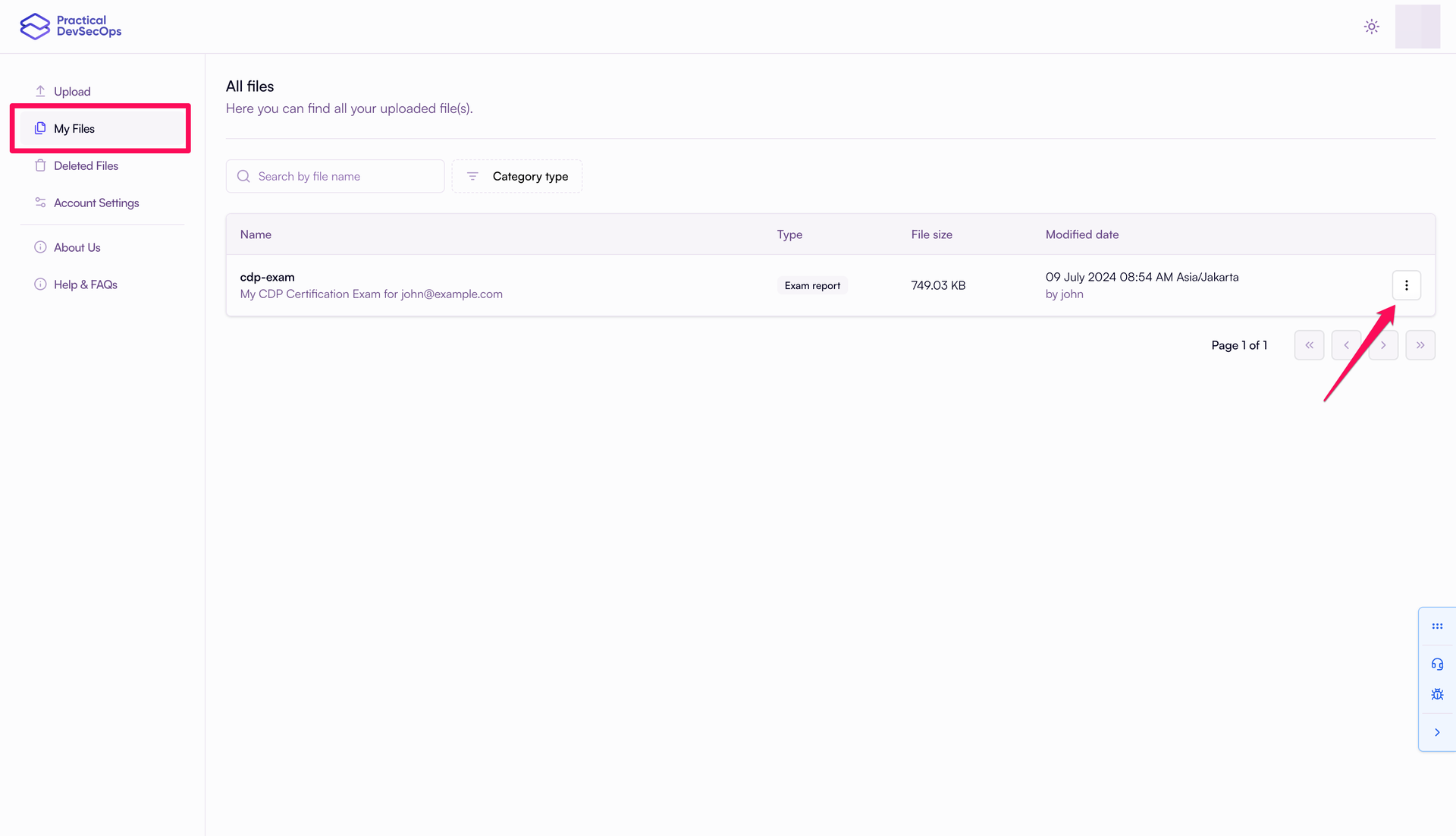
Open the
My Filessection on the left side. -
Click the kebab icon next to your report on the right side.
-
Re-upload your exam report. The
Attachmentfield, which is a crucial element, must consist of a.zipfile containing structured folders named asChallenge1,Challenge2,Challenge3, etc., each with files likegitlab-ci.ymlor others, along with an included.pdfexam report namedreport.pdf, bearing in mind that the maximum file size allowed for the exam report is 50MB.
Note: Each exam has its own regulations. Please refer to your exam documentation to understand the requirements.
Final Thoughts
Formatting and submitting your DevSecOps exam report is straightforward when you follow the template, include both questions and solutions, and upload to the designated CloudDrive. Remember that the 72-hour review period runs nonstop — submit confidently and keep a copy of your confirmation for peace of mind.
Good luck, and we look forward to celebrating your DevSecOps certification!